
Download CrossFTP – Secure FTP client for Windows, Mac, Linux
Overview
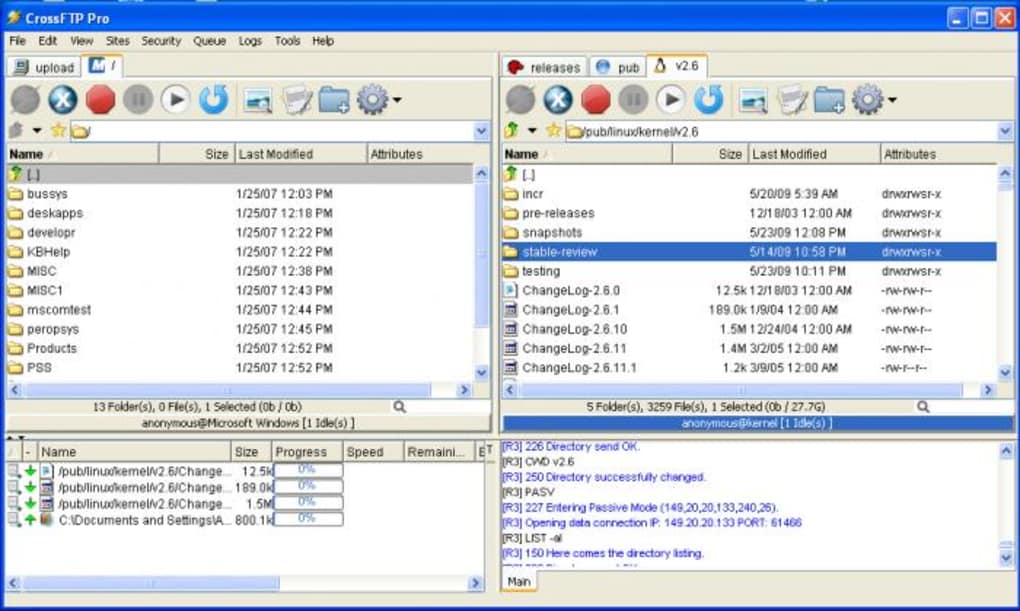
CrossFTP is a reliable, multi‑protocol FTP client that balances simplicity with a surprisingly rich feature set. Designed for users who need a fast, secure way to move files across the internet, CrossFTP supports the most common transfer protocols—FTP, SFTP, FTPS, FXP, WebDAV, and even Amazon S3—so you can manage cloud storage and traditional servers from a single interface. The application originated as a Firefox add‑on, but today it runs as a standalone program on Windows, macOS, and Linux, offering a tab‑based workspace that lets you juggle several transfers at once without losing focus.
Whether you’re a web developer uploading site assets, a system administrator syncing backups, or a photographer moving large image collections, CrossFTP gives you the tools you need while keeping the learning curve shallow enough for beginners. Its built‑in text and image viewer lets you preview files before you commit to a download or upload, and smart features such as auto‑reconnect and anti‑idle keep long‑running sessions alive even on flaky networks. While the depth of options—batch transfers, synchronization, scheduling—can feel overwhelming at first, the comprehensive help file and intuitive layout make it easy to master over time.
In short, CrossFTP delivers a secure, cross‑platform solution for anyone who works with multiple protocols and values both speed and reliability.
Key Features
- Support for FTP, SFTP, FTPS, FXP, WebDAV, and Amazon S3.
- Tab‑based interface allowing simultaneous multiple transfers.
- Integrated text and image viewer for quick file preview.
- International character support for filenames and directories.
- Archive browsing with built‑in extraction and compression tools.
- Auto‑reconnect and anti‑idle mechanisms to maintain stable connections.
- File synchronization, batch transfer, and scheduled upload/download.
- Cross‑platform compatibility: Windows, macOS, and Linux.
- Secure encryption standards for SFTP/FTPS transfers.
- Detailed logging and transfer reports for audit trails.
Each feature has been engineered to reduce the friction that typically comes with managing multiple servers or cloud buckets. For instance, the tab system works like a modern web browser: you open a new tab for each server, drag and drop files between them, and watch progress bars update in real time. The built‑in archive tools mean you no longer need a separate unzip utility; you can explore ZIP, TAR, or GZIP archives directly on the remote server and extract only the files you need. Security‑focused users will appreciate the robust handling of SFTP keys and FTPS certificates, while power users can leverage the scheduling engine to automate nightly backups without ever opening the application. All of these capabilities sit behind a clean, language‑aware UI that respects international character sets, ensuring that filenames in Japanese, Arabic, or Cyrillic render correctly on both local and remote systems.
Installation, Usage & Compatibility
Step‑by‑Step Installation
Downloading and installing CrossFTP is straightforward. Visit the official website, choose the installer that matches your operating system, and click the Download button. For Windows users, an .exe installer will guide you through the typical wizard—accept the license, select the destination folder, and finish the setup. macOS users receive a .dmg file; simply drag the CrossFTP icon into the Applications folder. Linux users can download a .tar.gz archive, extract it with tar -xzf, and run the provided install.sh script, which creates a desktop entry for easy access. All installers are signed and delivered over HTTPS, ensuring a secure download free from tampering.
First‑Run Configuration
Upon launching CrossFTP for the first time, you’ll be greeted by a welcome screen prompting you to create a new connection. Fill in the host address, select the protocol (FTP, SFTP, FTPS, etc.), and provide authentication details—username/password or SSH key for SFTP. The Save button stores the connection profile locally, allowing you to reconnect with a single click in the future. The interface defaults to a two‑pane view: the left pane shows your local filesystem, while the right pane displays the remote server. Drag files between panes to start a transfer, or right‑click a file for options such as Rename, Delete, or Preview.
Operating System Support
CrossFTP runs natively on the three major desktop platforms:
- Windows 10, 11 (both 32‑bit and 64‑bit)
- macOS 10.14 (Mojave) and later, including Apple Silicon (ARM) with Rosetta 2 support.
- Linux distributions that support GTK3, such as Ubuntu 20.04+, Fedora 33+, and Debian 10+.
The cross‑platform nature is achieved through Java, which also means the application receives regular security patches and performance updates via the built‑in Check for Updates menu. Users on any supported OS can take advantage of the same feature set without needing separate binaries, simplifying deployment across mixed‑environment teams.
Pros and Cons
What Users Love About CrossFTP
- Broad protocol support eliminates the need for multiple tools.
- Tab‑based UI makes multitasking seamless.
- Integrated previewer saves time before uploading.
- Auto‑reconnect and anti‑idle keep large transfers alive.
- Cross‑platform availability ensures consistent experience.
- Advanced features (synchronization, scheduling) are available in the free version.
Areas for Improvement
- Initial learning curve can be steep for beginners.
- Help documentation, while comprehensive, could use more video tutorials.
- Interface feels dated compared to modern cloud‑first clients.
- No native mobile app; only desktop platforms are supported.
- Large archives may take longer to browse due to remote extraction.
Frequently Asked Questions
Is CrossFTP free to use?
CrossFTP offers a fully functional free version that includes all major protocols and most advanced features. A paid “Pro” license is available for users who need priority support and occasional premium plugins.
Can I schedule automated transfers?
Yes. The built‑in scheduler lets you define recurring uploads or downloads, choose specific days and times, and even set conditional rules based on file size or modification date.
How does CrossFTP handle secure connections?
Secure protocols such as SFTP and FTPS are fully supported. The application validates server certificates, allows you to import SSH keys, and uses industry‑standard encryption (AES‑256) for data in transit.
Is there a limit to the size of files I can transfer?
No artificial limits are imposed by CrossFTP. Transfer size is only constrained by the underlying protocol and server configuration, making it suitable for multi‑gigabyte video or database backups.
What kind of technical support is available?
Free users have access to the online knowledge base, community forums, and email support with a standard response time. Pro license holders receive priority email and live‑chat assistance.
Conclusion & Call to Action
CrossFTP stands out as a versatile, secure FTP client that delivers on both simplicity and depth. Its extensive protocol list, tab‑based multitasking, and built‑in preview tools make daily file transfers faster and less error‑prone. While newcomers may need a short adjustment period, the comprehensive help resources and intuitive layout quickly pay off. Whether you’re managing a single website or orchestrating complex, multi‑server deployments, CrossFTP provides the reliability and cross‑platform consistency that modern professionals demand. Ready to streamline your file workflow? Download CrossFTP now and start moving files with confidence.







